
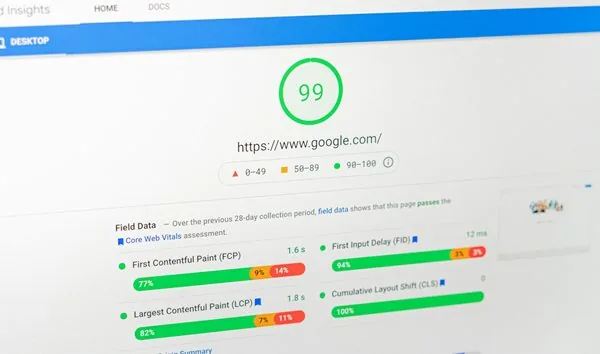
Website speed is one of the most important factor deciding any website’s SEO performance and usability. However, with WordPress websites, it can be hard to achieve a good loading speed. Depending on the number of installed plugins, image sizes, website’s structure, and design elements, the pages can take a significant amount of time to load. This will not only impact your search engine rankings but also how the users interacts with it and whether they convert or not.
Optimizing your pages for speed is really easy if you keep some key factors in mind. It is all about reducing the things on a page or improve the existing items. People think adding more optimization plugins to compressing the content more will make their websites fast but that isn’t the case all the times. Surely, you should take care of the image optimization and design but this isn’t enough most of the times.
So, in this article, I am going to give you 5 tips that I personally follow to make a WordPress website load faster and achieve 90+ score all the times. Let’s get started.
1. Ditch Cheap Shared Hosting
I am not saying that a shared hosting is bad but when you pick the most cheapest one and expect it to perform like a premium one, this won’t happen. You can’t outrun a bad infrastructure using any technique. A cheap hosting can be good in the start but as you start getting some traffic, it will start to choke and your loading speed will be reduce automatically.
When you are looking for a server, go for LiteSpeed or NGINX. Apache is outdated and slower under load. Also, pick a server which is near to your targeted audience. For example, if most of your traffic comes from USA, make sure to have a server in USA only. You can also use CDN for caching but having the physical server near to your audience always help with speed.
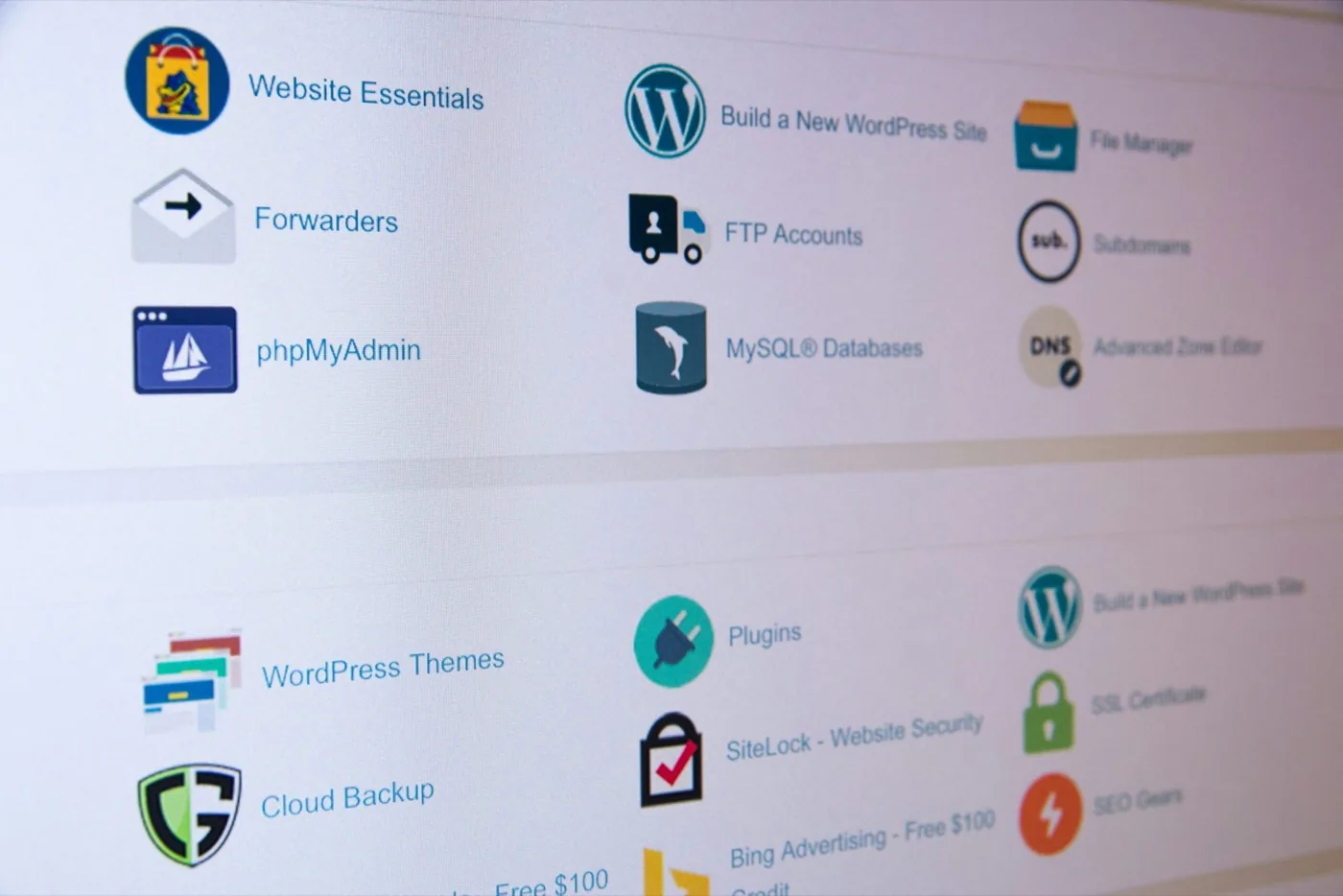
Make sure your hosting provider have built-in caching function. Good hosting providers like Kinsta and Cloudways offer you server level caching which can beat any caching plugin anytime.
Avoid unlimited plans because they are generally oversold. Get atleaset 1-2 GB of RAM with dedicated CPU cores for serious performance. Upgrade as the load increases.
2. Picking a Lightweight Theme
Theme is the most important technical aspect deciding your website’s loading performance. It is the base of your website and must be chosen properly. Now, theme decides the design of your pages as well so performance can’t be the only criteria but there are themes which offer good customizations along with the performance.
The theme controls your base HTML, CSS, and JS output. A bloated theme comes with unnecessary scripts, animations, and frameworks that kill your score before you even start.
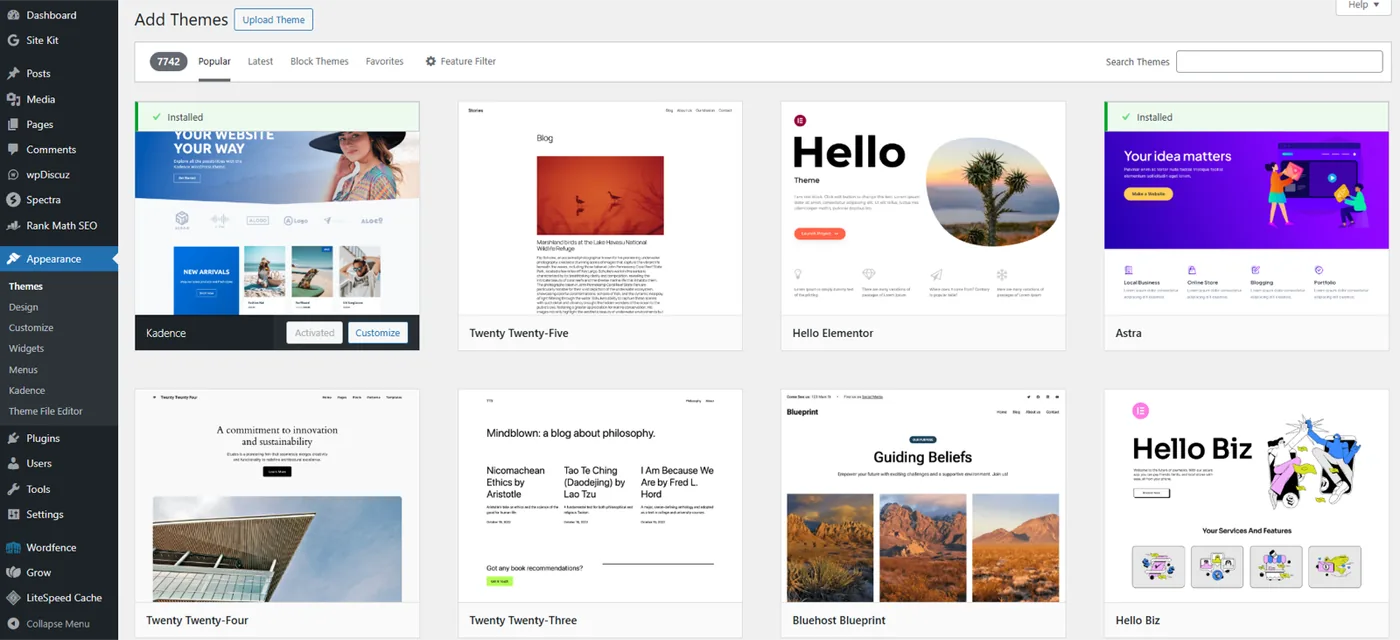
To make sure you always pick the right them, find your theme’s demo and run it through PageSpeed Insights. Also look for the file size. Anything above 200 KB without compression for CSS/JS is too heavy.
Now, in some cases, you may have to use builders like Elementor but if you don’t have plan to use these, it is good to avoid themes requiring these builders. Themes depending on builders like Divi, Elementor, or WPBakery load 2–5× more assets than Gutenberg or FSE (Full Site Editing).
In simple words, simple = faster. Check if you can build your website using some popularly good themes like GeneratePress, Astra, Kadence, and Blocksy. They’re lean, modular, and tested for performance.
3. Get Caching and CDN right
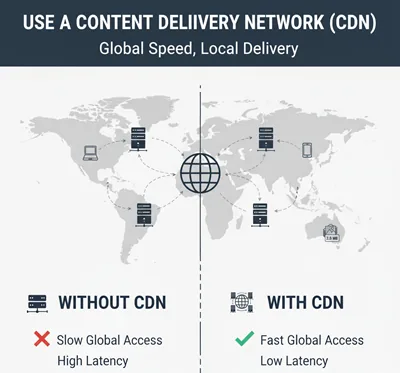
Caching is how you stop WordPress from rebuilding pages on every visit. CDNs reduce physical distance between users and your content by sharing the content across different servers near to your users.
A good hosting will offer your both caching and CDN features atleast in the form of plugins. However, for caching, you can try different free or paid plugins like WP Rocket, FlyingPress, or LiteSpeed Cache. These can instantly add 20–30 PageSpeed points when set up correctly. For CDN, platforms like Cloudflare have free plans for limited audience. Otherwise, you can always choose for a good paid CDN if you want.
Here are the key things to configure when you are setting up caching and CDN.
- Full-page caching: Serve static HTML instead of dynamic PHP pages.
- Object caching: Store database queries (Redis, Memcached).
- Browser caching: Tell browsers to reuse static assets for weeks.
- CDN: Cloudflare (free tier is enough for most), or Bunny.net/Fastly/KeyCDN for more control.
- JS defer + CSS minify: Cuts down on render-blocking resources.
- Lazy loading: Delays image loading until they’re needed on-screen.
4. Take care of your plugins
WordPress plugins are important but they can be decremental for your website’s loading speed at the same time. You may need them to add features but at the same times, they will add extra code to your website which will end up increasing the load speed.
It is good to use only the necessary plugins and delete the extras. Prefer one plugin per need. “All-in-one” solutions are usually slow monsters. Keep all your plugins updated and use only the trusted ones. The plugins that comes from your theme’s developer put less load on your website.
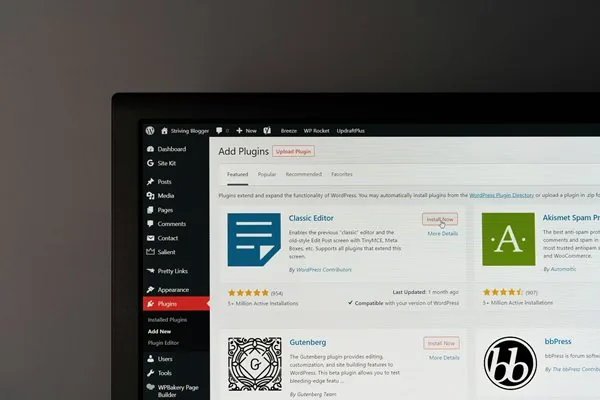
Check for the lightweight replacements of the plugins that you are currently using. For example, Fluent Forms instead of Contact Form 7, or Rank Math instead of Yoast SEO.
5. Image + Font Optimization Done Right
Images and Fonts can put a significant load on your website’s resources and end up causing serious loading problems. Optimizing them correctly can cut load size in half. Make sure to compress your images and use modern formats like Webp. For fonts, it is good to use legacy fonts or if you want to use special ones, host them locally. Here are some tips to follow.
For image Optimization.
- Use WebP or AVIF format — smaller, faster, same quality.
- Use plugins like ShortPixel, Imagify, or EWWW Optimizer for automatic compression.
- Resize before upload. Do not upload 4000px images for a 300px thumbnail.
For fonts:
- Limit to 1–2 fonts, max 3 weights each.
- Host them locally (not Google Fonts). It reduces DNS requests.
- Preload critical fonts (<link rel=”preload”>) to avoid layout shifts.
- Avoid icon fonts entirely; use SVGs.
If your total page size is below 1MB, you’ll see the jump to 90+. So, make sure to compress your images as much as possible without losing the quality. Some hosting providers also provide free image compression features. So, have a look at it as well.
Conclusion and Final Tip
Whenever your run your website or the pages through Google PageSpeed Insights or tools like GTmetrix, they provide you with detailed reports on the improvements you can do. Pay a close attention to them because and do those changes to your website.
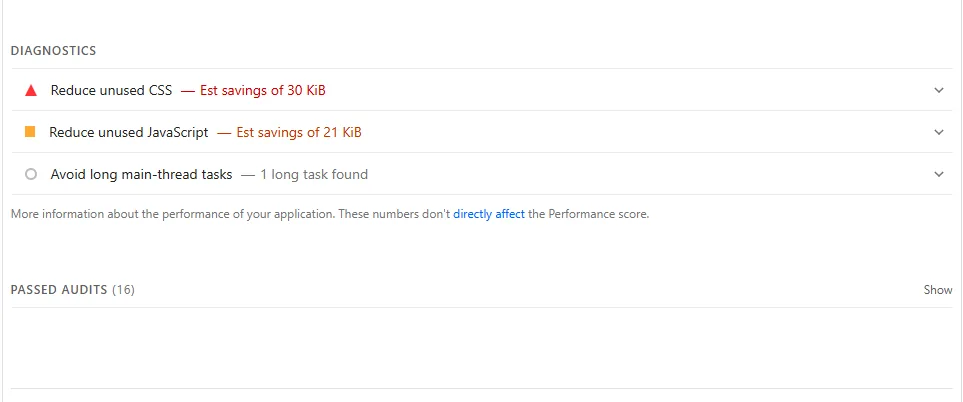
These tips will help you improve your pagespeed but if there are some fundamental or technical issues in your website’s code, you may have to do significant changes to your website. This may include changing your themes or removing some plugins.